| Hey friends, let me guess. You bought a game on Steam. The trailer looked amazing. Then you hit “play”... and it was a letdown. Maybe it crashed every ten minutes. Maybe the controls felt like driving a shopping cart with a bad wheel. Or maybe you clicked “buy” at 11 p.m. after a long day and woke up with regret. Been there. More than once. A few years ago, I bought a farming game for about $25. My nephew swore it was the best thing ever made. I played for forty minutes. The game ran so slow that I could have grown real corn faster. I almost shrugged it off and ate the cost. Then I learned Steam has a refund system. And it's pretty fair. So today I'll show you exactly how to refund a game on Steam. No tech talk. No confusing menus. Just simple steps, a few real stories, and some tips I picked up the hard way. If you feel like Steam was built for teenagers, don't worry. I'm right there with you. We'll figure it out together. Key Takeaways Short on time? Here's the quick version:
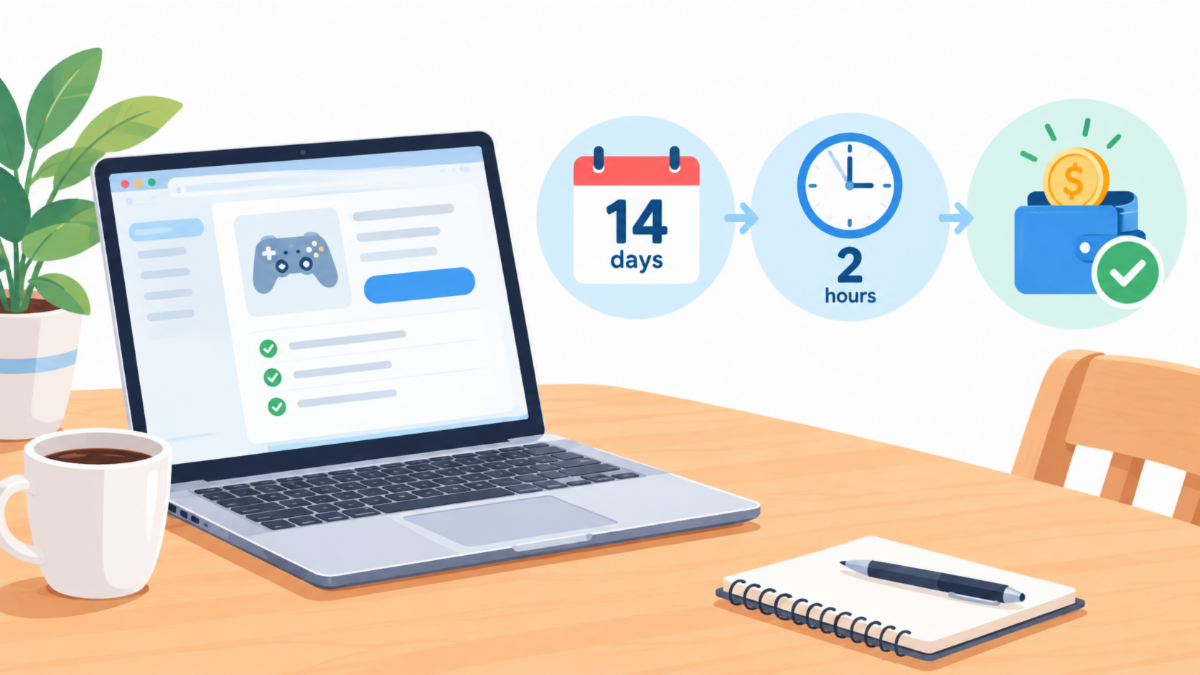
- Steam will usually refund a game if you bought it in the last 14 days and played it for less than 2 hours.
- You send the request through Steam Support. It takes about two minutes.
- You can get your money back on your original payment method or in your Steam Wallet.
- DLC, pre-orders, bundles, and in-game items each have their own twists.
- You can still ask for a refund if you break the rules. Steam may say no, but asking costs nothing.
- Most refunds are approved fast. The money can take a few days to show up in your bank account, though.
What Is the Steam Refund Policy, Really? Let's start with the basics. Valve (the company behind Steam) built a simple rule. It's easy to remember. Two weeks. Two hours. That's it. If you bought a game less than 14 days ago, and you played it for less than 2 hours, you can ask for your money back. You don't need a fancy reason. The game was boring? Fine. Too hard? Fine. You just changed your mind? Also fine. Think of it like a clothing store with a good return policy. You try on the shirt. It doesn't fit. You take it back. No hard feelings. Here's what that means in plain English:
- Purchase date: Within the last 14 days.
- Playtime: Under 2 hours total.
- Reason: Almost anything works.
One thing trips people up. The two hours count everything. Menu time. Loading screens. Even that time you left the game running while you made a sandwich. Steam tracks the total time the game was open. So if you're on the fence about a game, keep an eye on the clock. And a quick heads up. This policy covers games you bought on Steam itself. We'll talk about keys from other websites a bit later. Before You Start: Check If Your Game Is Eligible I always do a quick check before I request anything. It saves time. And it saves me from feeling silly. Here's how I do it. Step 1: Look at your playtime Open the Steam app on your computer. Click Library at the top. Find your game in the list on the left. Click it. On the game's page, you'll see a section called Play Time. It shows how many hours you've spent in the game. If it says 1.5 hours or less, you're in good shape. If it says 1.9... well, you're cutting it close. Don't launch it again! Step 2: Check your purchase date Next, let's make sure you're inside the 14 days. Click your account name in the top right corner. Pick Account details. Then click View purchase history. You'll see a list of everything you've bought. Find the game. Look at the date. Simple. Step 3: Do the math If both numbers look good, you're ready to go. If not, don't panic. I'll cover that case too. I once missed a refund window by about nine minutes. Nine! I'd left a game running while I helped my wife look for her reading glasses. Lesson learned. Now I close games the second I'm done. How to Refund a Game on Steam, Step by Step Okay. Here comes the main event. I'll walk you through it like I'm sitting next to you at the kitchen table. You can do this on a computer or on your phone. The steps are close to the same. I'll use the computer version, because the bigger screen is easier on the eyes. Step 1: Open Steam Support Open the Steam app. Look at the top menu. Click Help. Then click Steam Support. A new window opens. Don't be scared. It's just a help page. You can also visit the Steam Support website in your web browser. Either way works. Just make sure you're signed in to your Steam account. Step 2: Click “Purchases” On the Support page, you'll see a short list of choices. Click Purchases. Steam will show your recent buys. This list usually covers the past few months. Step 3: Pick the game you want to refund Find the game in the list. Click on it. Can't see it? Look for a link that says something like Looking for something else? Click that to search a bigger list. Step 4: Choose “I would like a refund” Now you'll see a few options. Pick I would like a refund. If your game is eligible, Steam shows a short message saying so. Nice, right? If it's not eligible, you'll see a note explaining why. We'll come back to that. Step 5: Give a reason Steam asks you to choose a reason from a list. Some typical ones:
- The game doesn't run well on my computer
- The game isn't what I expected
- I bought this by mistake
- Something else
Pick whatever fits best. Be honest. You can also type a short note. Keep it simple. Something like “The game is too slow on my laptop” is plenty. Step 6: Choose where the money goes This is where you pick your refund method. You'll usually see two choices:
- Steam Wallet: The money goes into your Steam account as credit.
- Original payment method: The money goes back to your credit card, debit card, or PayPal.
Not every game gives you both choices. We'll dig into this in a minute. Step 7: Submit your request Click Submit Request. That's it. Steam sends you an email to confirm. Keep that email. It's handy if anything goes wrong later. Honestly? The first time I did this, I was shocked at how quick it was. I figured there'd be forms, phone calls, maybe a long hold music playlist. Nope. Three minutes, tops. Steam Wallet vs. Original Payment Method So which one should you pick? It depends on what you want to do next. Steam Wallet is like store credit. It's usually fast. Often within minutes or hours. And you can spend it right away on another game. Original payment method is like getting your cash back. It's great if you're done with Steam for a while, or if you need the money for other stuff. But it takes longer. Here's a quick comparison:
- Speed: Wallet is usually faster. Your card or PayPal takes longer.
- Flexibility: Original method gives you real money back. Wallet only works on Steam.
- Best for: Wallet if you plan to buy more games. Original if you want your cash.
Now here's a catch. If you paid with Steam Wallet funds in the first place, your refund goes back to the wallet. No other choice there. Also, sometimes Steam only offers one option. That can depend on how you paid and where you live. Don't stress about it. Just take what's offered. When I got my farming game money back, I chose my credit card. It showed up in about five days. My buddy Dave picked Steam Wallet and had his money before he finished his coffee. Different needs, different choices. How Long Does a Steam Refund Take? Great question. Everyone asks this one. Steam says most refund requests get handled within about a week. In my experience, many are approved in just a few hours. Some even come back the same day. Here's what I've seen:
- Steam Wallet: Often within hours, or a day at most.
- PayPal: Usually a day or two.
- Credit or debit card: A few business days after Steam approves it.
Your bank plays a part, too. Steam can approve the refund fast. But your bank may take a few more days to post it. Banks aren't exactly known for speed. While you wait, you can do two things. First, check your email for the confirmation message. Second, open your purchase history in Account details. The status will change once the refund goes through. If more than a week goes by and nothing shows up, go back to Steam Support and use the Contact Steam Support option. Mention the date of your request. They're usually helpful about it. One more thing. Once the refund is approved, the game disappears from your library. You can't play it anymore. If you change your mind later, you'll need to buy it again. Maybe at a better price, if you're lucky. |